
Overview
Prefer Video Tutorials?
Watch step-by-step guides on our YouTube channel
RouteFixer offers two powerful tools for working with GPS routes. Each tool is designed for specific use cases, making it easy to fix existing routes or create new ones from scratch.
Fix Route
Purpose: Edit and repair existing GPX files
What it does:
- Upload and edit existing GPX routes
- Trim unwanted sections from your route
- Join multiple GPX files together
- Split a single route into multiple segments
- View real-time distance and moving time metrics
Best for:
Fixing corrupted routes, removing wrong turns, combining multiple activities, or splitting long routes into smaller segments. Perfect when you already have a GPX file that needs editing.
Re-create Route
Purpose: Create new routes from scratch
What it does:
- Plot route by clicking points on the map
- Automatically calculates cycling route between points
- Calculates realistic timing based on user set speed and gradient
- Import reference GPX to support route creation
- Add ride name, date, and time information
Best for:
Creating completely new routes from scratch, recreating lost activities, or planning future rides. Perfect when you need to build a route by clicking on a map rather than editing an existing file.
Key Differences
Fix Route:
- Requires an existing GPX file
- Focuses on editing and modifying
- Works with actual GPS track data
- Preserves existing timestamps and elevation
Re-create Route:
- Starts with a blank map
- Focuses on creating from scratch
- Generates new route data
- Creates new timestamps based on your settings
Switching Between Tools
You can easily switch between Fix Route and Re-create Route using the page selector dropdown located at the top left of the map interface. Simply select your desired tool from the dropdown menu.
Fix Route
How it works
- 1Upload your GPX file to RouteFixer
- 2Select a mode
- 3Trim, Split or Join more routes
- 4Download the GPX route(s)
- 5Upload to your training platform
Video Tutorial Coming Soon
A step-by-step video guide for the Fix Route tool is in production
Subscribe to get notifiedMultiple Modes
Choose between Normal, Join, and Split modes to work with your routes. Join multiple GPX files together or split a single route into multiple segments.
Precision Trimming
Remove unwanted sections from your route with precision. Click two points on the map to trim the section between them, perfect for removing wrong turns or unwanted data.
Real-Time Metrics
See your route distance and moving time update automatically as you make changes. All metrics are calculated in real-time for immediate feedback.
Route Splitting
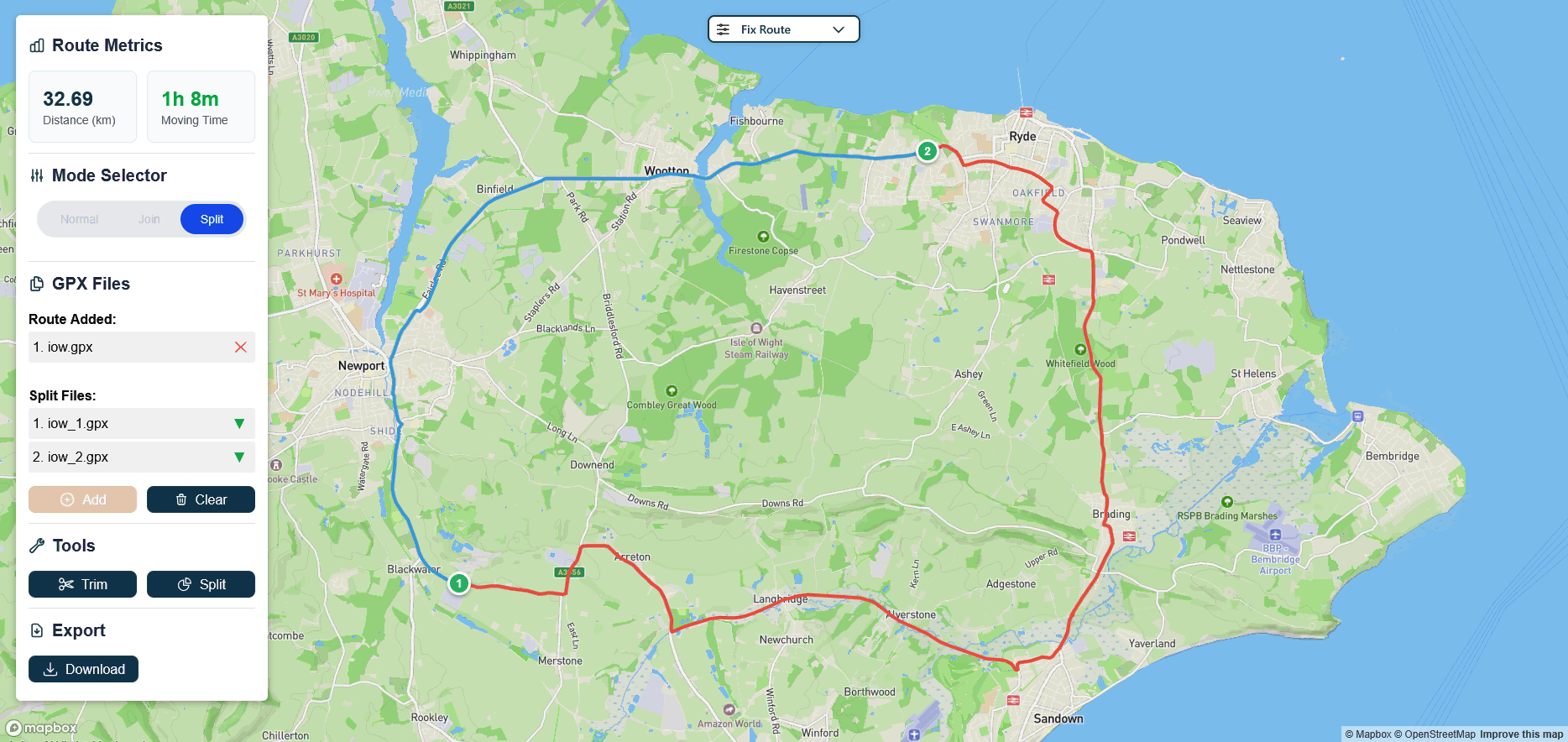
Split your route into multiple segments at any point. Each segment is colored differently on the map and can be downloaded individually or as a zip file.
Interface
The Fix Route interface is designed to be simple and efficient, with all essential tools readily accessible for editing your GPX files.
Tools Sidebar
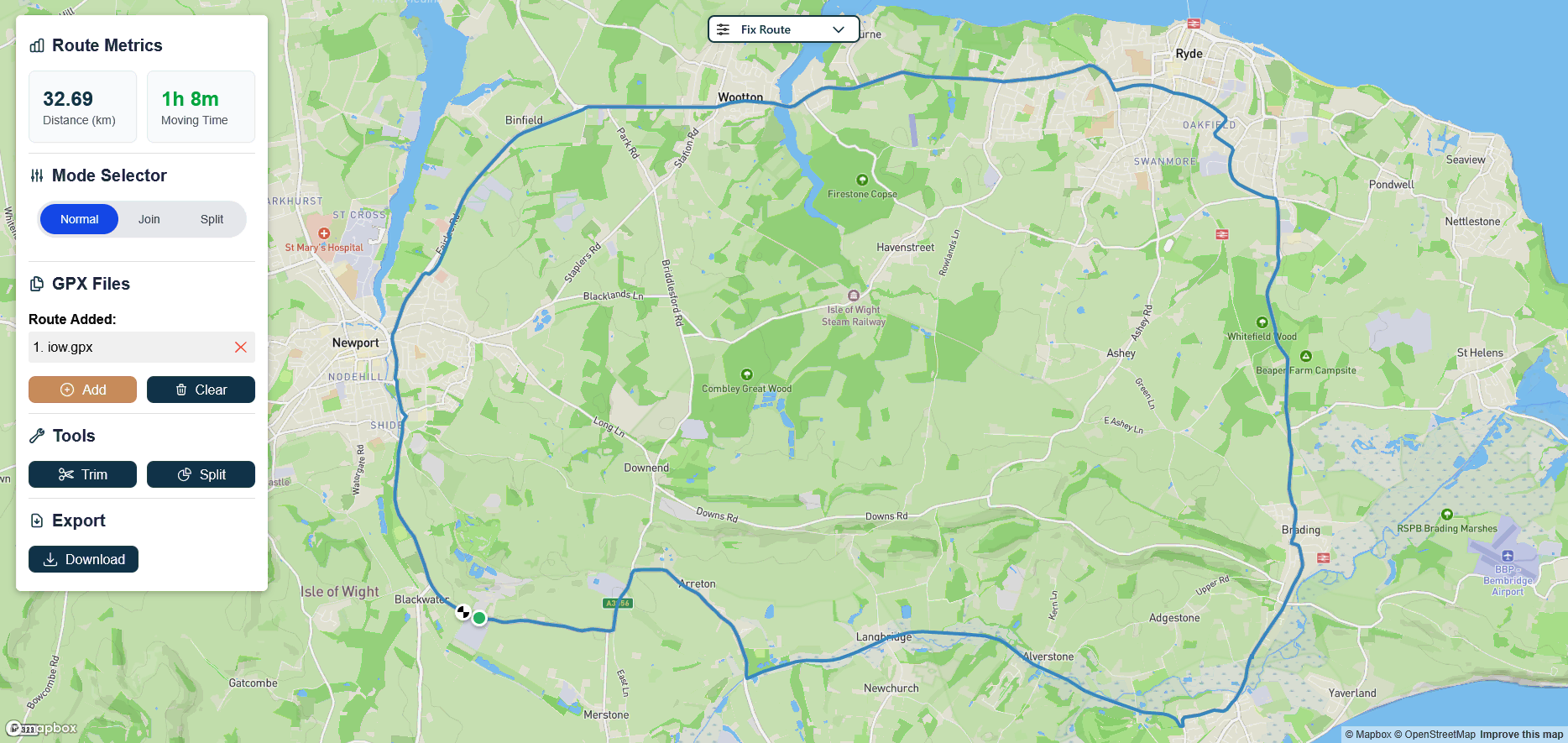
Contains all the tools you need to work with your GPX files, including metrics display, mode selection, file management, and editing tools.
- Route metrics
- Mode selector
- File management
- Trim, Join and Split tools
- Export options
Tools Sidebar
The Tools Sidebar is located on the left side of the interface and contains all the functionality you need to edit and manage your GPX files.
Route Metrics
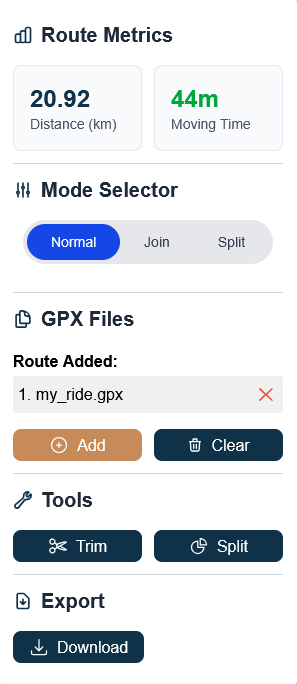
Displays real-time statistics for your route including total distance in kilometers and moving time. These metrics update automatically as you make changes to your route.
Mode Selector
Choose between three modes:
Normal for single file editing
Join for combining multiple GPX files
Split for dividing a route into segments
Note: The mode automatically switches to Join when you add a second file.
GPX Files
Manage your uploaded GPX files. Add new files using the Add button, or remove individual files by clicking the × next to the filename.
Tip: When split files are created, they appear in this section with download buttons for each segment.
Tools
Access editing tools for your route. Trim removes sections between two selected points. Split divides your route into multiple colored segments at a selected point.
Note: This section appears after you upload a GPX file.
Export
Download your edited route. For joined or edited routes, a single GPX file is downloaded. For split routes, all segments are packaged in a zip file. Individual split segments can also be downloaded from the file list.
Re-create Route
How it works
- 1Plot a route on the map
- 2Select the speed of the ride
- 3Give the ride a name and time
- 4Download the GPX route
- 5Upload to your training platform
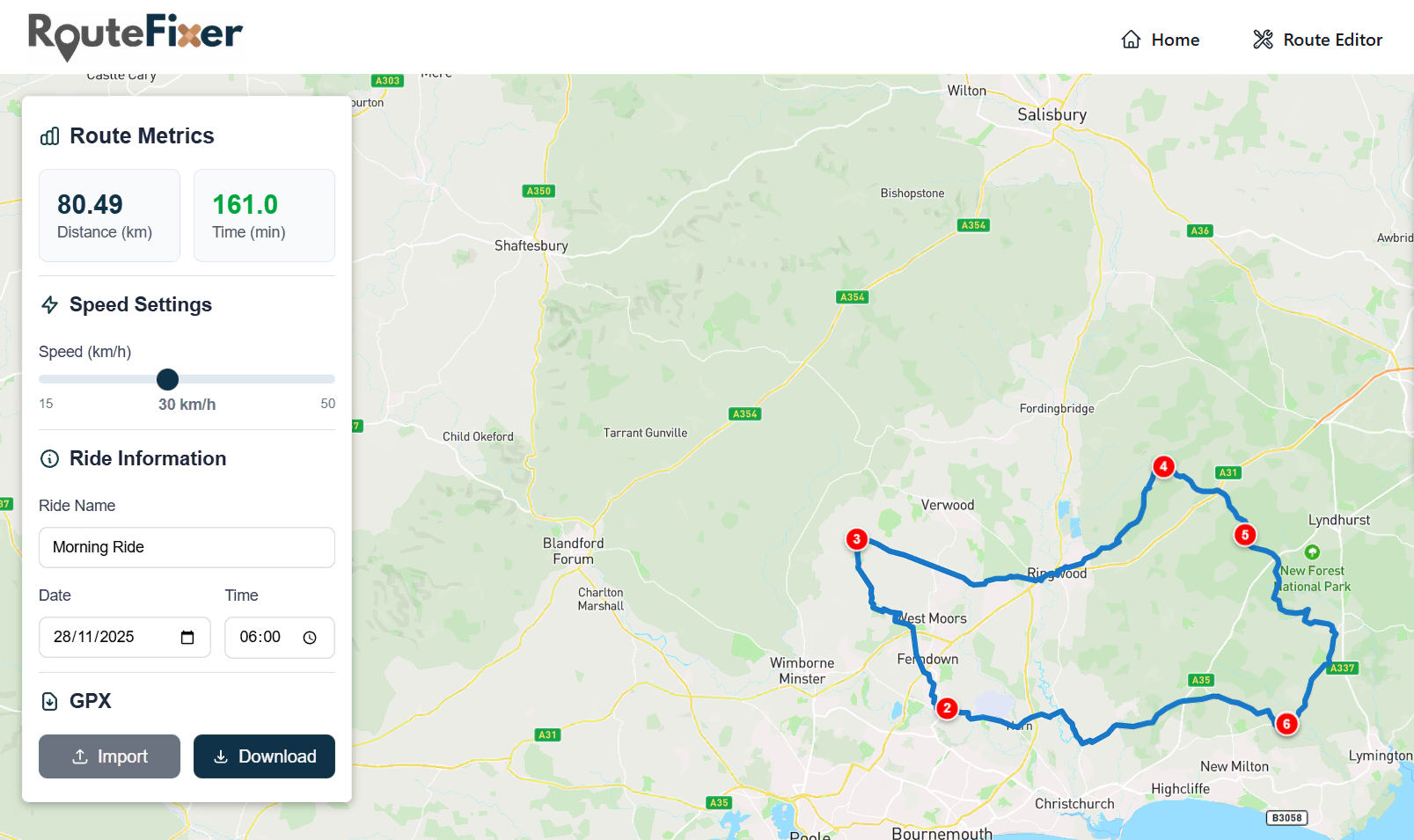
Smart Speed Calculation
The app automatically calculates your speed on gradients to give you realistic times based on terrain and elevation changes.
Import Existing Routes
Optionally, you can import an existing GPX route to help create your route or use as a reference for planning.
Interface
The interface is designed to be as simple and intuitive to use as possible, with all essential tools readily accessible.
Route Sidebar
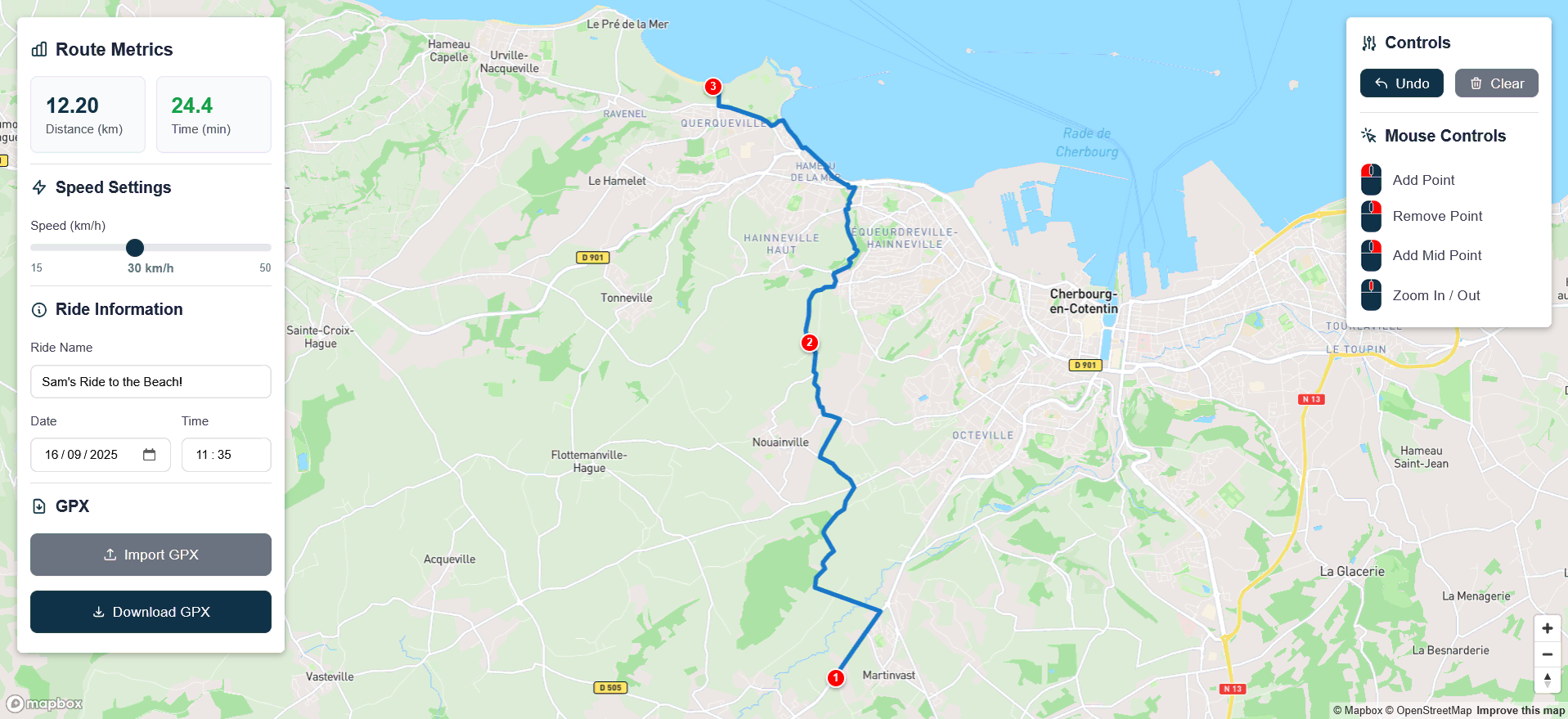
Houses the ride information with real-time route data, speed settings, ride details, and import/export functionality.
- Route metrics display
- Speed configuration
- Ride information
- GPX import/export
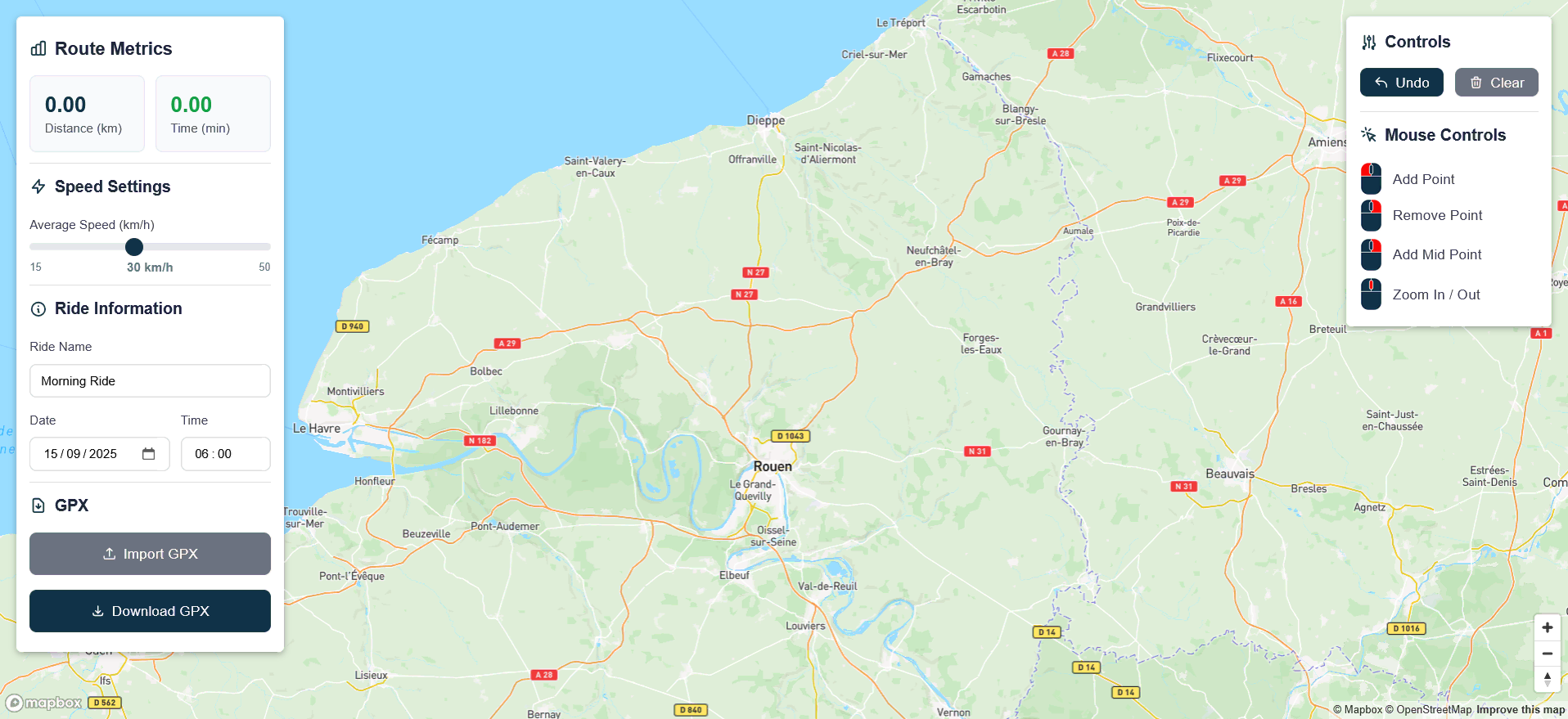
Controls Sidebar
Contains simple map controls for route creation, including undo, clear, and mouse interaction guides.
- Undo/Clear buttons
- Mouse control guide
- Map interaction help
- Point manipulation tools
Route Sidebar
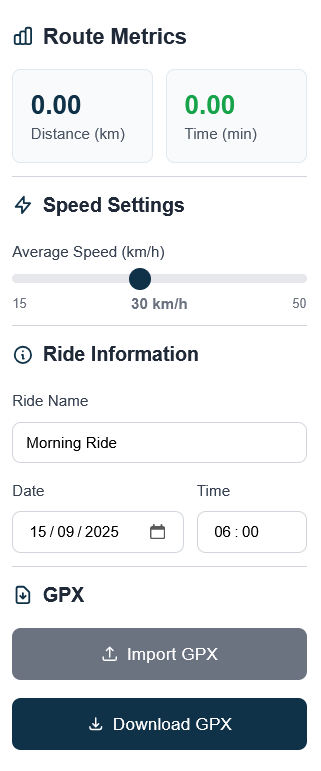
On the left side of the interface, you will find the Route Sidebar which is home to the ride information.
Here you can see real-time information about the plotted route and configure your preferred settings.
Route Metrics
As the route is plotted on the map, the time and distance are automatically updated in real-time, providing instant feedback on your route planning.
Speed Settings
Use the slider to select a speed for your ride.
Note: This is not the average speed of your ride. This is how fast you would ride on a flat 0% gradient road. Your speed on gradients is calculated based on this speed input.
Ride Information
A ride name and time is required. This information is added to the GPX file download and will be displayed when uploaded to your training platform.
Tip: The date defaults to the current date if one is not inputted.
Import GPX
If you have an existing route, you can import it onto the map. The route will be plotted in grey and can be used as a reference to help plot your new route.
Download GPX
Once you have finished plotting the route and you are satisfied with the ride information and settings, you are ready to download the route and upload it to your favorite training platform!
Controls Sidebar
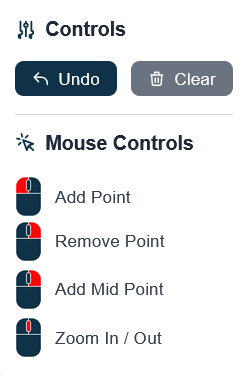
On the right side of the interface, you will find the Controls Sidebar that houses the map controls.
Creating a route is entirely possible by only using the mouse and button clicks. However, if you make a mistake you can undo or clear the route altogether.
Map Controls
Undo Button
Removes the last placed point on the map. The undo functionality can be used repeatedly, taking you all the way back to the first point if needed.
Clear Button
Removes the entire route from the map. If you have imported a reference route onto the map, this will also be cleared.
Mouse Controls & Map Interaction
This section shows you how to interact with the map using your mouse.
LEFT CLICK Add Point / Map Navigation
1. Add Point
Adds a point to the map. Subsequent clicks build a route. After each click on the map, a cycling-suitable route will be calculated between the two points.
2. Map Navigation
As with other mapping apps, holding left click and moving your mouse will pan around the map.
RIGHT CLICK Remove Point / Add Waypoint
1. Remove Point
Quickly remove an incorrectly placed point. This can be faster than using the Undo button. Place the cursor over the existing point and right-click to remove it.
2. Add Waypoint
Sometimes the route may not use the exact roads you anticipated between two points. Right-click on the road you want to include and the app will place a point on that specific road, ensuring the route passes through it.
DRAG Point Manipulation
All points that have been placed on the map can be dragged at any time. When a point is dragged to a new position, the route will be recalculated automatically, passing through each of the points on the map in their new positions.
SCROLL Zoom In / Out
Use the mouse scroll wheel to zoom the map in and out, allowing you to see more detail or a wider area.
Frequently Asked Questions
Find answers to the most commonly asked questions. Can't find what you're looking for? Feel free to reach out for additional support.
What is a GPX file?
GPX (GPS eXchange Format) is a text based XML file format used to store GPS data, such as waypoints, tracks, and routes. It uses a standard structure with tags to define data, allowing it to be easily interpreted by various GPS devices, software, and online mapping services for the purpose of importing and exporting location information. As the format is text based, the file can be opened in a text editor and viewed freely.
What is the Speed setting? Is it average speed for the ride?
No. The speed setting is how fast you ride on a 0% gradient. Your speed will be adjusted for elevation so you are faster on the downhill, and slower uphill, relative to your flat speed - just like the real world.
Can I use the website to cheat?
We do not condone using this website to manipulate or boost rankings on the global leaderboards of any platform. We understand that some users may want to create a fake or enhanced ride simply to share with friends. If that’s the case, please set the ride visibility to Only Followers. This way, your ride will still be visible to your followers but will not appear on the global leaderboard. Global leaderboards are closely monitored by the community, and unrealistic times are often flagged and removed.
Still Have Questions?
If you can't find the answer you're looking for, please visit the Support page for further help.